How To Design The Perfect Pinterest Pin Without Being A Graphic Designer
Disclosure: this post may contain affiliate links, meaning, at no additional cost to you, i may earn a small commission from any purchases made through them
Marketing your business online has never been more important. With so many brick-and-mortar stores shutting down, it’s a stressful time for business owners trying to stay afloat. But at the same time, e-commerce and online businesses are thriving. Why? Because they can keep running no matter what’s happening in the world.
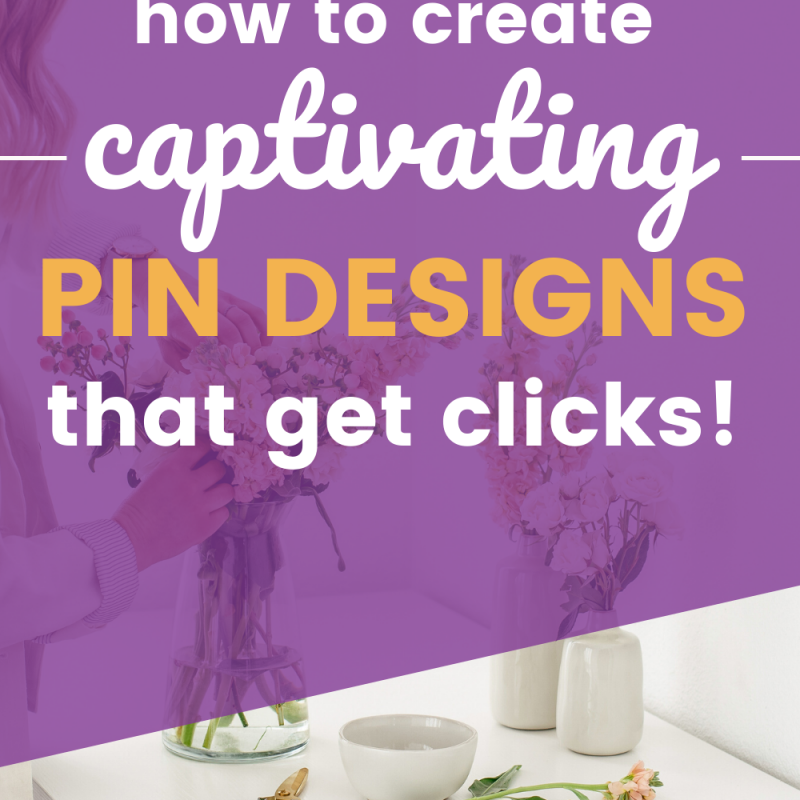
If you’re looking for ways to get your business in front of more people, Pinterest can be a game-changer. But here’s the thing, just being on Pinterest isn’t enough. You need the perfect Pinterest pin — one that stops the scroll, grabs attention, and makes people want to click.
I know pin design can feel overwhelming. Maybe you’ve spent hours creating pins that barely get seen, or you’re not sure what actually works. Don’t worry—you’re not alone. In this post, I’ll walk you through how to design the perfect Pinterest pin so you can create graphics that stand out, get clicks, and drive real results.
Let’s start with the basics…
Pin Design 101: Design The Perfect Pinterest Pin
Image pin design doesn’t have to be complicated. In fact, Pinterest has made it clear with their creative recommendations. I’m going to break these down for you before we get into the nitty-gritty of designing these graphics!
Visually Compelling
First and foremost, your pins need to be eye catching. Bright color combinations, beautiful lifestyle or product imagery, and appropriate typography, when combined, can creating visually compelling graphics.
If you don’t have access to your own photography and graphic design makes you want to run, don’t worry. I’ll show you later on where you can get amazing stock images for your pins and how to combine fonts without breaking a sweat.
High-Quality, Vertical Images
Pinterest recommends creating pins in 2:3 aspect ratio (such as 1000 x 1500 px). They’ve warned that any sizes outside that ratio risk getting cropped in the Pinterest feed.
The 2:3 aspect ratio isn’t the end all be all, however, it is their standard size. I’ve successfully used long-form pins at 1000 x 1800 px without having any issues. In fact, they received more engagement than my other pins!
Includes Branding
Pinterest also recommends making your brand the focal point. This makes sense if you are selling a product, you want the item to be prominent in any photography you use. If you don’t sell a product, don’t worry. You can include branding in your pin design by adding a logo, website URL, brand colors and fonts!
Tells A Story
Lastly, Pinterest recommends you design your pin around a story or information. Make your pin stand out by adding a text overlay that provides a compelling headline, context adds to your message.
Tools For Easy Pin Design
We know what Pinterest wants in terms of the pins we design but how do you go about making them? It’s actually incredibly easy and doesn’t require any specialized skills.
Canva Graphic Design
This online graphic design tool is the EASIEST one you will likely ever use. You can get started immediately with their free subscription, and have access to free stock images, hundreds of design templates, and more. As a result, Canva has become the go-to for many online entrepreneurs.
Canva’s simple drag and drop design feature makes designing your Pinterest graphics an easy task. Using their present sizes, you can automatically create pins using the standard size, or create your own custom sizes. If you’re not comforting designing pins from scratch they also provide free templates you can use – just swap out the text for your own, keep or add your photo and voila!
Here’s a short clip showing you how easy it is to design the perfect Pinterest pin inside Canva:
If you ever want to take your designs to the next level, Canva also offers a Pro Plan which gives you access to features like saving your own templates, uploading custom brand fonts, color palettes and more.
Need help designing faster and consistently? Check out these Canva Hacks for Pinterest to create Pinterest pins quickly and consistently, without looking DIY or amateur.
Adobe Creative Suite
If you’re more advanced in graphic design than the Adobe Creative Suite is another option to consider. Several of my colleagues’ design pins with Adobe Illustrator. It’s more flexible than Canva, however, if you’re not familiar with Adobe’s Creative Suite they can take time to learn.
Other Useful Pin Design Tips
Lastly, here are some pin design tips that I have picked up, as a Pinterest Manager, that will help you design the perfect Pinterest pin and get more clicks.
Premium Stock Images
When I switched from free to premium stock images my engagement rates increased. Why? Pinterest prioritizes fresh images, meaning, if the image you’re using is already circulating on other users pins you won’t get as much distribution. Unfortunately, free stock photos are over used and can hurt your efforts.
On the other hand, Premium stock photography subscriptions are great for Pinterest marketing because the photographs aren’t as widely used and they consistently add new photographs. Plus, they are gorgeous and something I couldn’t capture myself! I use premium stock images from Ivory Mix on all my pins now.
Large Emphasized Text
When designing your pin you want the most important information to stand out and grab someone’s attention. You can do this a few ways, including making that text larger or choosing a color that stands out.
If all your text overlay is the same size, it’s hard to get your message across or stand out from all the other pins.

Colors That Pop
Pins that combine colors that work well together get more engagement. Colors should reflect your branding but also look good. You need to be able to read the text overlay on top of the background or image. If it’s to hard to read nobody will click the pin.
Powerful Titles
A strong headline or pin title makes a massive difference! You want to make the reader want to click and find out more. Including power or emotional words in your titles can help turn a boring title into a compelling one. I recommend using CoSchedule Headline Analyzer if you have trouble writing titles.
Keep Your Pins Simple
Lastly, keep your pin designs simple. The best performing pins give enough context for someone to click through without over doing it.
Grab Premium Canva Templates & Design The Perfect Pinterest Pin
You’re now ready to design the perfect Pinterest pins that users can’t help but click! Your visual content is the best tool on Pinterest, which is after all a visual search engine. Perfect your designs and watch your engagement stats climb!
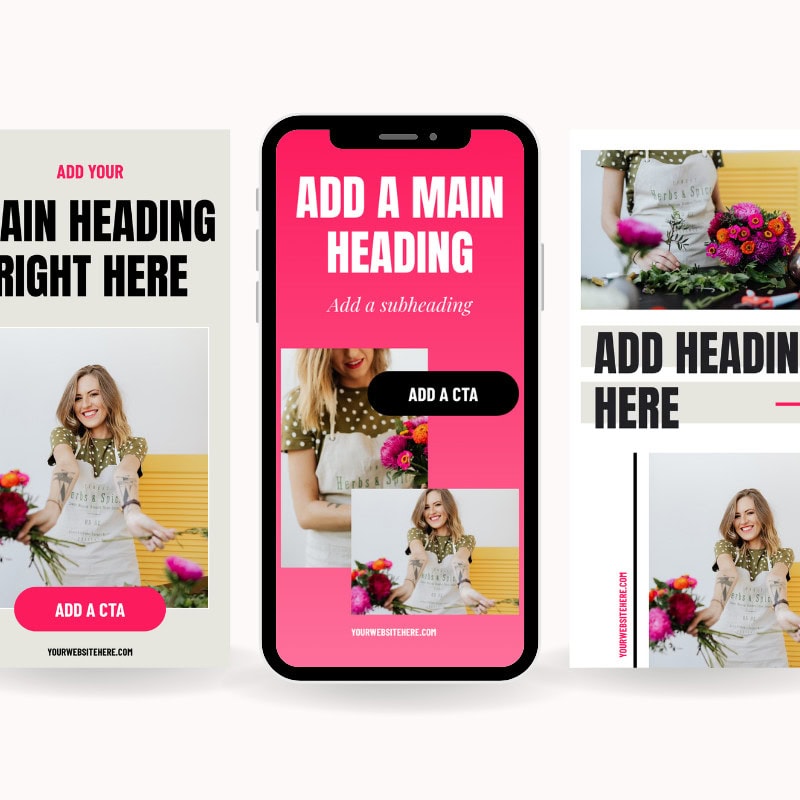
Get a head start with my NEW Pinterest pin templates for coaches and services providers.